Gamalogic Email Validation Integration with Sendpulse
Overview
This documentation provides a complete technical guide for integrating Gamalogic Email Validation with Sendpulse. It is designed for developers, campaign automation specialists, and email marketing teams who want to maintain clean contact lists, reduce bounce rates, and improve deliverability within Sendpulse.
Gamalogic connects to Sendpulse using the platform’s Client ID and Secret, allowing secure access to your contacts, lists, and automations. No OAuth authentication is required. Gamalogic does not store these credentials.
1. Prerequisites
Before starting the integration, ensure you have:
1.1 Gamalogic Requirements
- A Gamalogic account, if not you will have to sign up here
https://app.gamalogic.com/signup
1.2 Sendpulse Requirements
- A Sendpulse account with Admin or Manager access
- Client ID and Secret from Sendpulse (Account Settings → API)
- Access to Audience and Contact lists
2. No-Code Integration with Sendpulse
2.1 How Integration works?
Step 1
Navigate to the App Integrations section in your dashboard
https://app.gamalogic.com/dashboard/integrate
Step 2
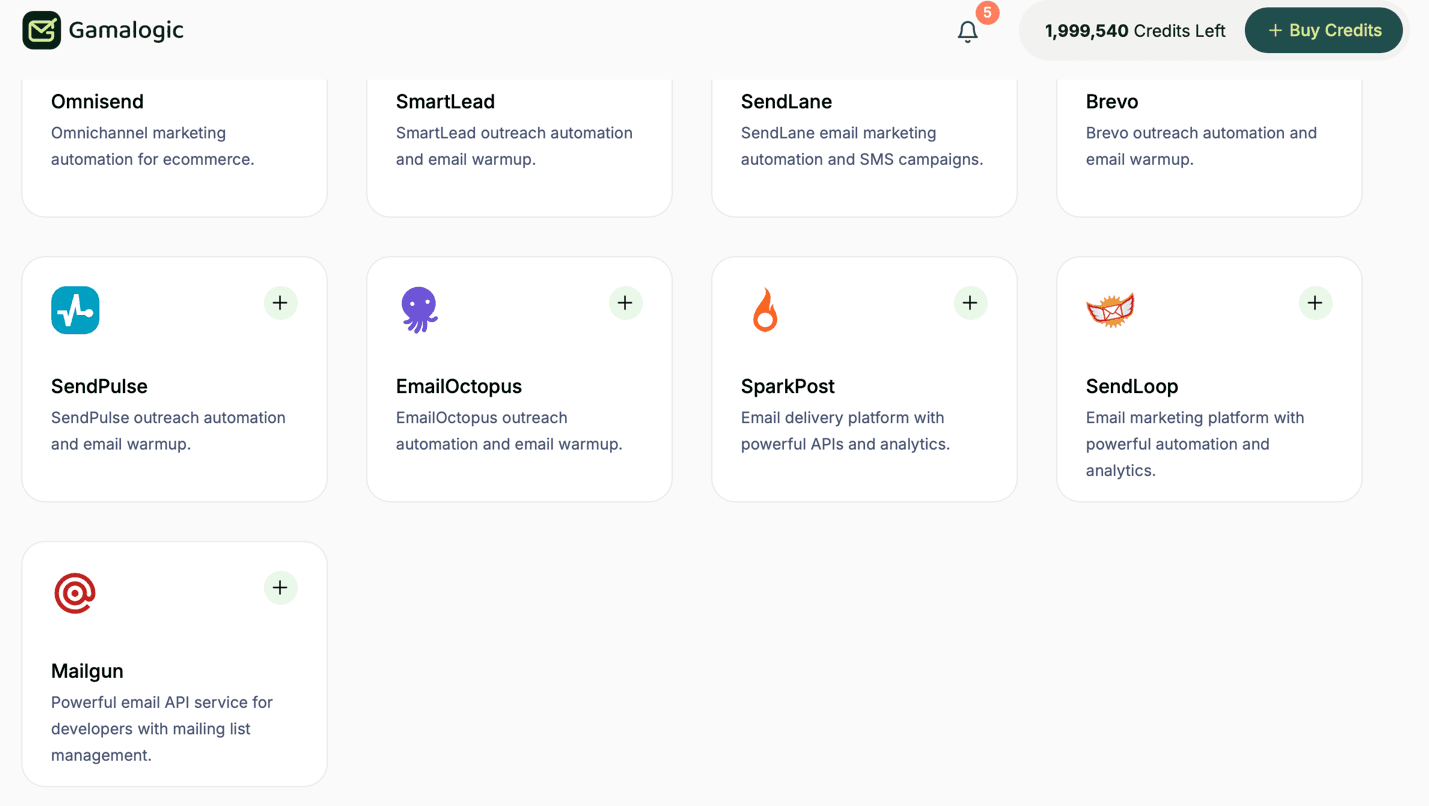
Select the Sendpulse application and click the + button.
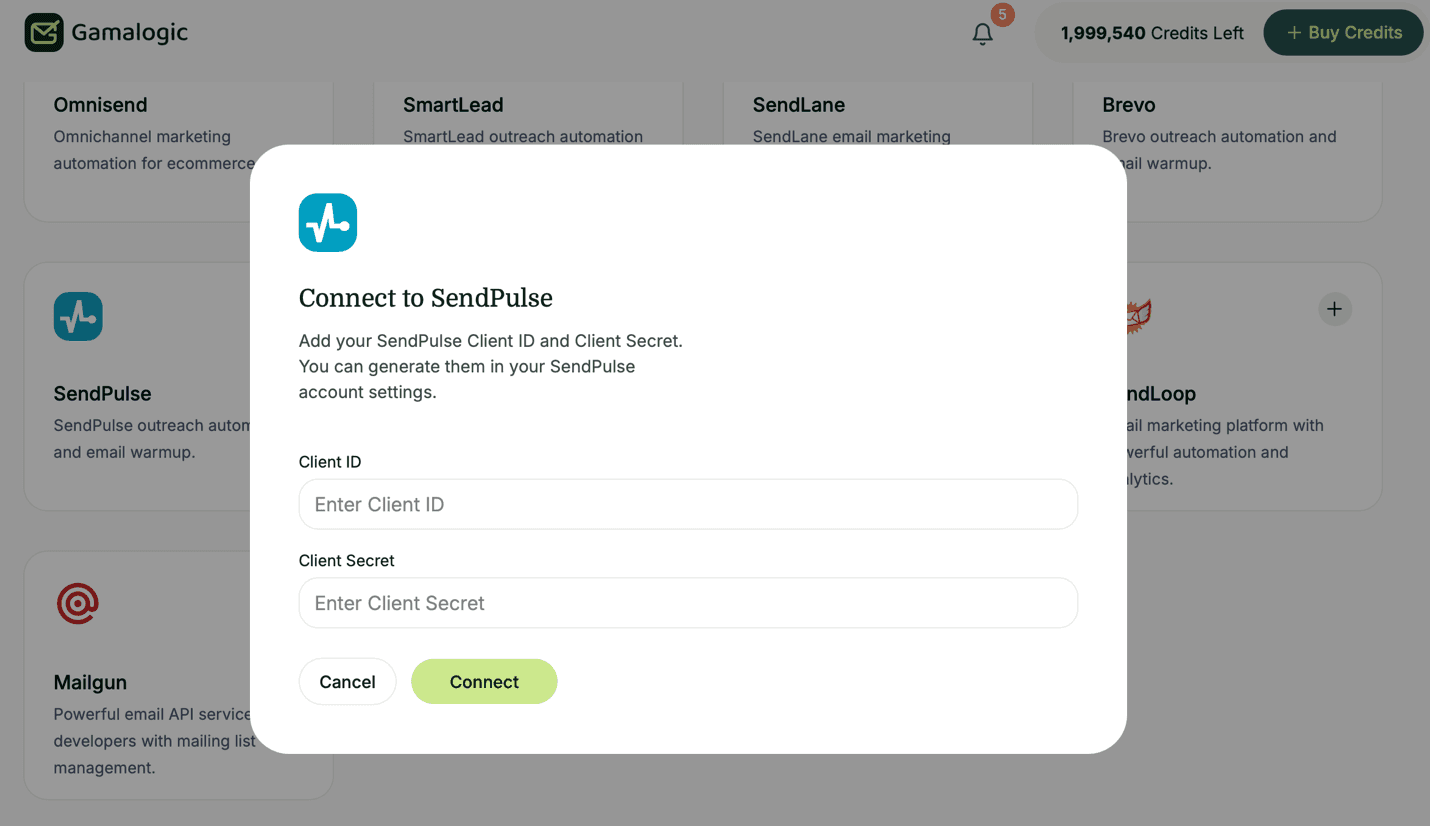
Step 3 — Authorize Access with Sendpulse contact list via API token
Copy your Client ID and Secret from Sendpulse under Account Settings, where you can enter your Sendpulse Client ID and Secret and grant the necessary permissions for Gamalogic to access and import your contacts. Copy and paste your credentials into Gamalogic. Gamalogic validates the Client ID and Secret and connects securely to your Sendpulse account.
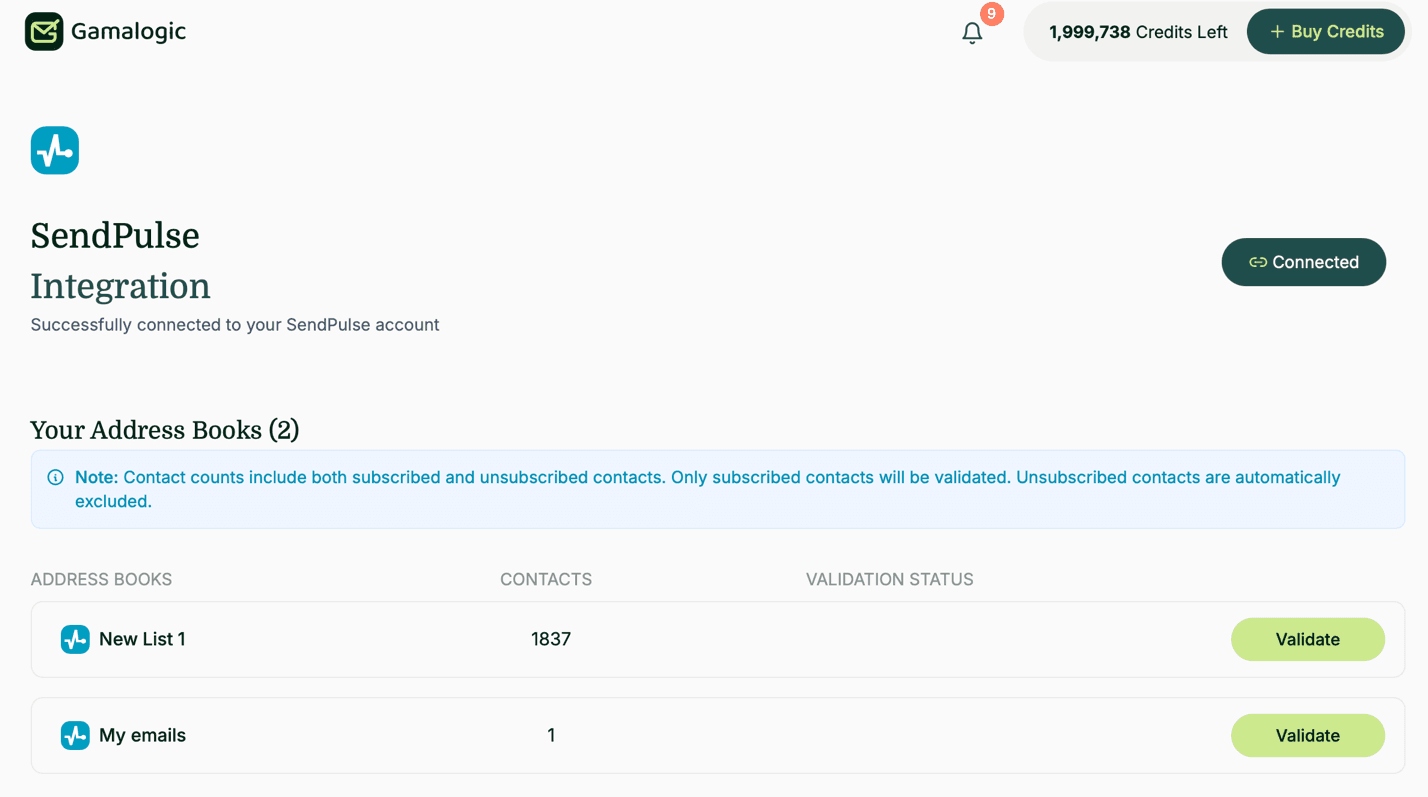
Step 4 — View Your Subscribers
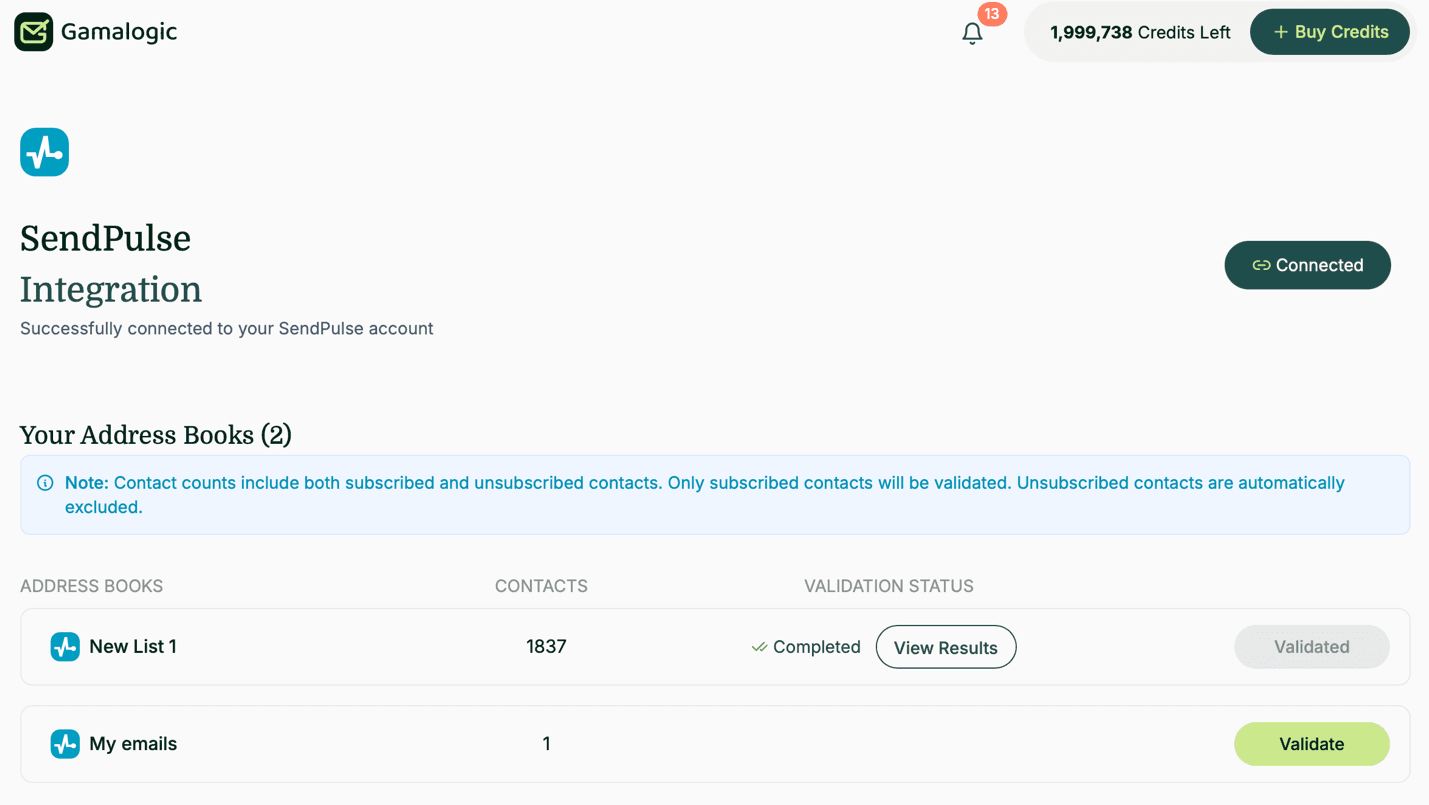
After connection, you’ll see all your Sendpulse subscribers displayed with email address count.
Step 5 — Start Email Validation
5.1 Choose Subscribers to Validate
- Review your Subscribers and select which one to validate
5.2 Check Credit Requirements
- The system automatically checks if you have enough credits
- Required credits = Number of contacts in the Subscribers
- If insufficient credits, you’ll be prompted to purchase more
5.3 Initiate Validation
- Click the “Validate” button next to your chosen Subscribers
- The button will change to “Initializing”
- Validation process begins
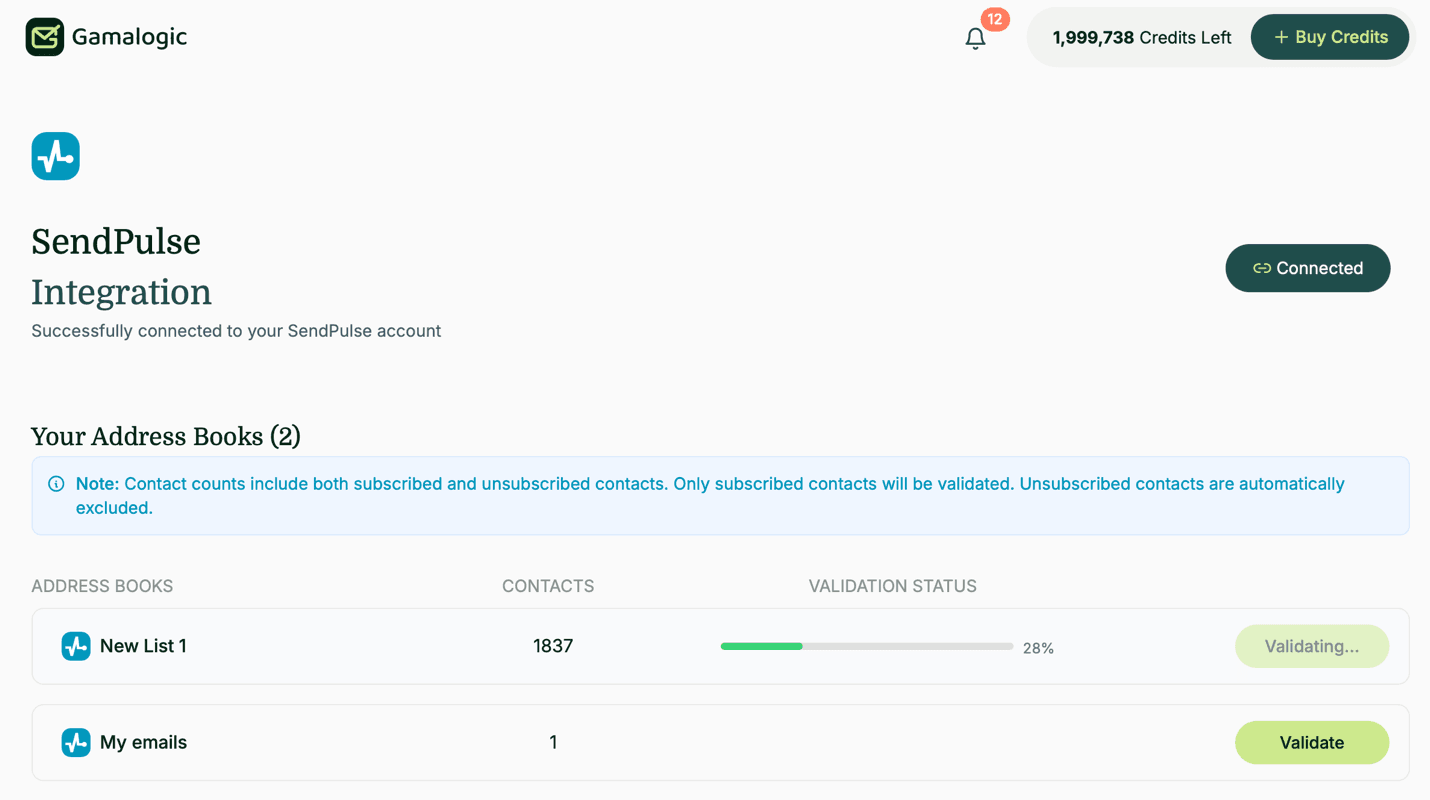
Step 6 — Monitor Validation Progress
Real-time Monitoring:
- Progress bar shows current status
Step 7 — Automatic Cleanup & Results
What Happens When Validation Completes:
Invalid and disposable Email Handling
- Automatic unsubscribe from your original Subscribers
- Email notification sent to you
Understanding the Results
When updating contacts, use these recommended fields:
| Status | Action |
|---|---|
| valid | Keep in the Subscribers |
| not_valid | unsubscribed |
| is_disposable | unsubscribed |
| is_catchall | Keep in the Subscribers |
| is_unknown | Keep in the Subscribers |
Step 8 — Notification & Reporting
- Email confirmation when process completes
- Detailed report available in your History section
- Download results for complete audit trail
Step 9 — Review and Next Steps
Check Your Results
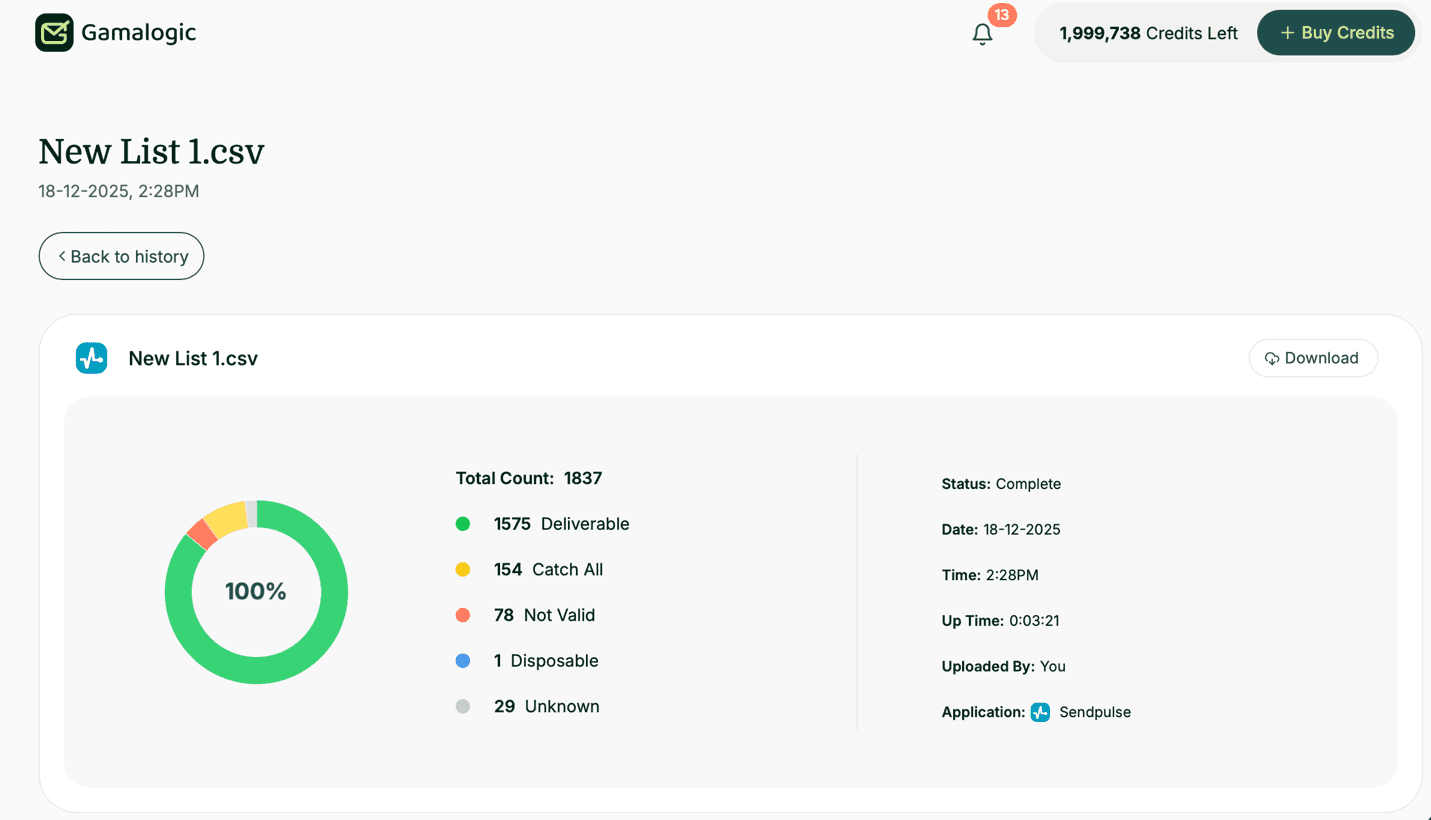
- Download CSV files with complete email-by-email results
- Review the unsubscribed subscribers in your Sendpulse account
4. Invalid and Disposable Workflow
Invalid and disposable emails should automatically:
- Will be marked as unsubscribed
- Will be excluded from all future campaigns
5. Reporting & Monitoring
Track:
- Validation success rate
- Percentage of invalid emails
- Disposable email patterns
- Deliverability improvements over time
Use Sendpulse dashboards and Gamalogic history page
https://app.gamalogic.com/dashboard/history to track the details
6. Contact
For support with integration:
- Gamalogic Support: support@gamalogic.com
- Sendpulse Help Center