Gamalogic Email Validation Integration with Dropbox
Overview
This document provides a complete technical guide for integrating Gamalogic Email Validation with Dropbox to access the email address list in Dropbox cloud storage.
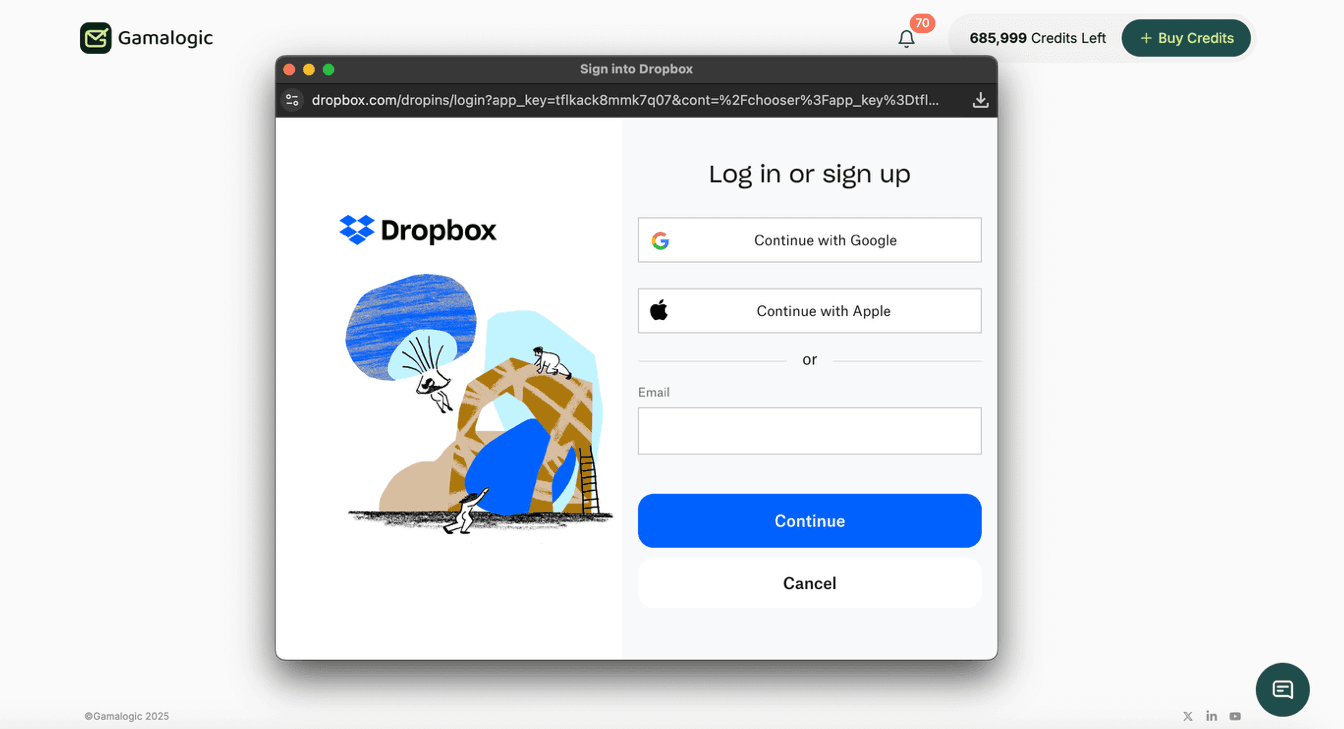
Gamalogic connects to Dropbox using Dropbox login credentials, allowing secure access to your contacts and email address lists. Gamalogic does not store these credentials.
1. Prerequisites
Before starting the integration, ensure you have:
1.1 Gamalogic Requirements
- A Gamalogic account, if not you will have to sign up here https://app.gamalogic.com/signup
1.2 Dropbox Requirements
- Dropbox account
2. No-Code Integration with Dropbox
2.1 How Integration works?
Step 1
Navigate to your dashboard https://app.gamalogic.com/
Step 2
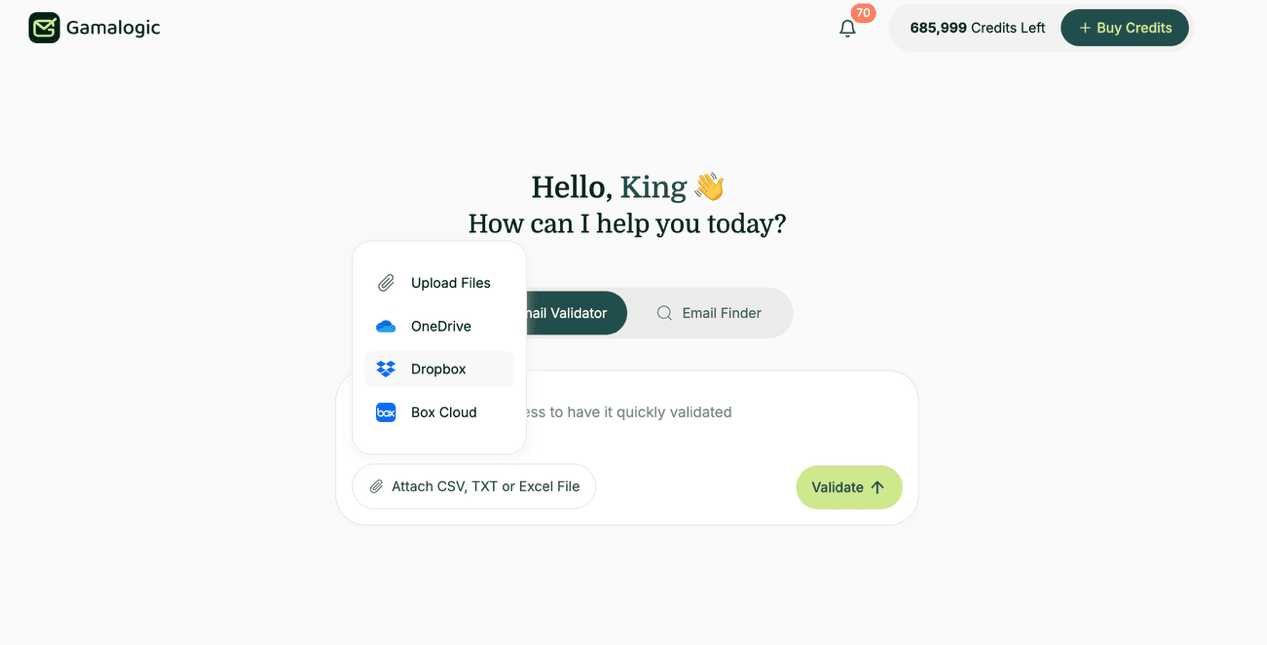
Click on attach button and select Dropbox Cloud
Step 3 — Grant Access with Dropbox
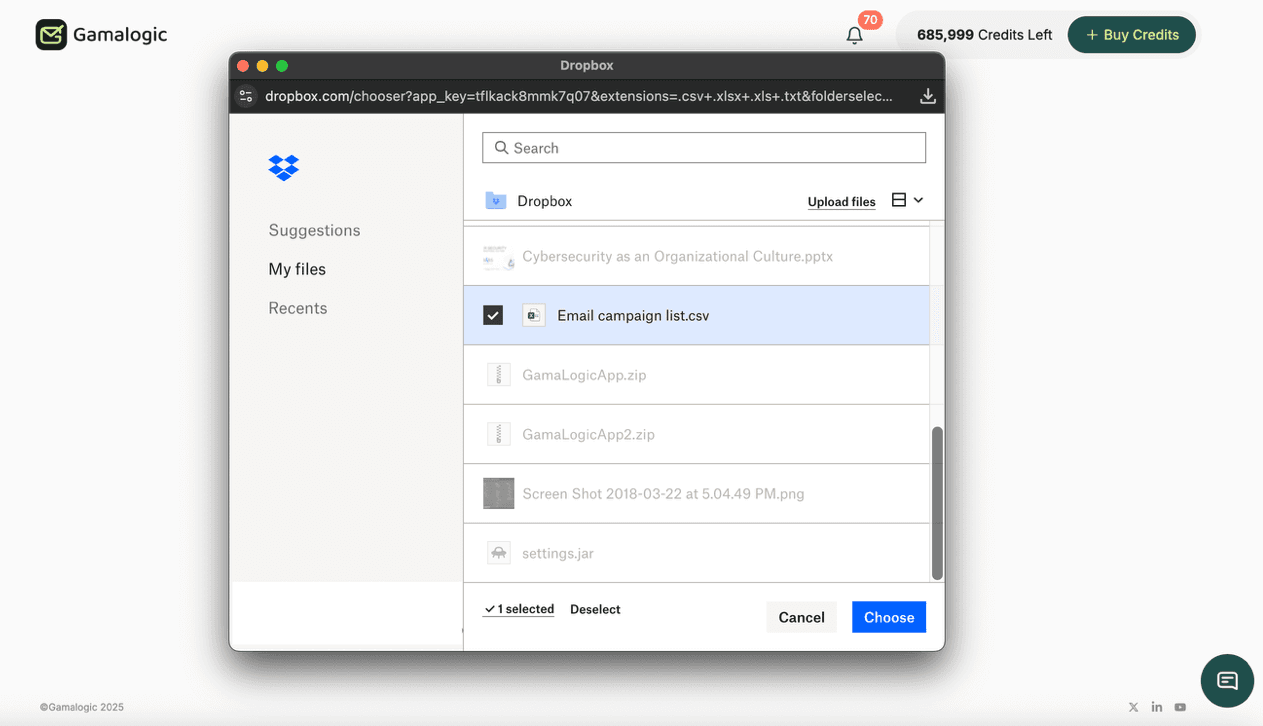
Step 4 View Your Files and Folders and select the files to validate
Step 5 Start Email Validation
- 5.1 Choose list to Validate
- • Review your Contacts and select which one to validate
- 5.2 Check Credit Requirements
- • The system automatically checks if you have enough credits
- • Required credits = Number of contacts in the Contacts
- • If insufficient credits, you’ll be prompted to purchase more
- 5.3 Initiate Validation
- • Click the “Validate” button next to your chosen Contacts
- • Validation process begins.
Step 6 Review and Next Steps
- Check Your Results
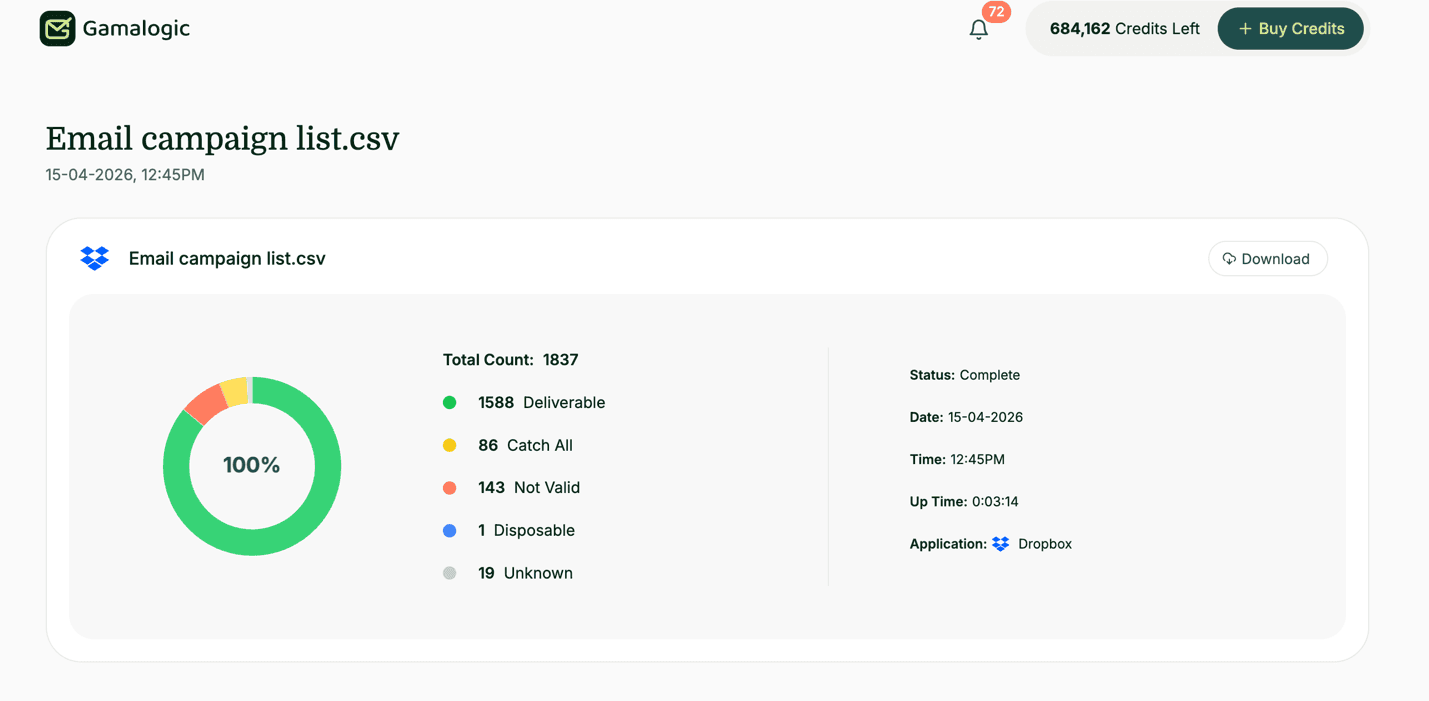
- Download files with complete email by email results
Use Gamalogic history page https://app.gamalogic.com/dashboard/history to track the details
6. Contact
For support with integration:
- Gamalogic Support: support@gamalogic.com
Last updated on