Gamalogic Email Validation Integration with Freshsales CRM
Overview
This document provides a technical integration guide for connecting Gamalogic Email Validation with Freshsales CRM. The integration enables automated email verification and contact hygiene management directly within Freshsales CRM to improve email deliverability, reduce bounce rates, and maintain high-quality contact databases.
Gamalogic integrates with Freshsales CRM using an API Key based authentication model. OAuth authorization is not required. API credentials are validated during connection and are not stored by Gamalogic.
1. Prerequisites
Before starting the integration, ensure you have:
1.1 Gamalogic Requirements
Before configuring the integration, ensure you have:
- An active Gamalogic account
- Sufficient validation credits available in your Gamalogic workspace
1.2 Freshsales CRM Requirements
Ensure the following prerequisites are met within Freshsales CRM:
- Active Freshsales CRM account
- Admin or Manager-level access permissions
- API Key access enabled
- Access to Contacts, Accounts, Lists modules
2. No-Code Integration with Freshsales CRM
2.1 How Integration works?
Step 1
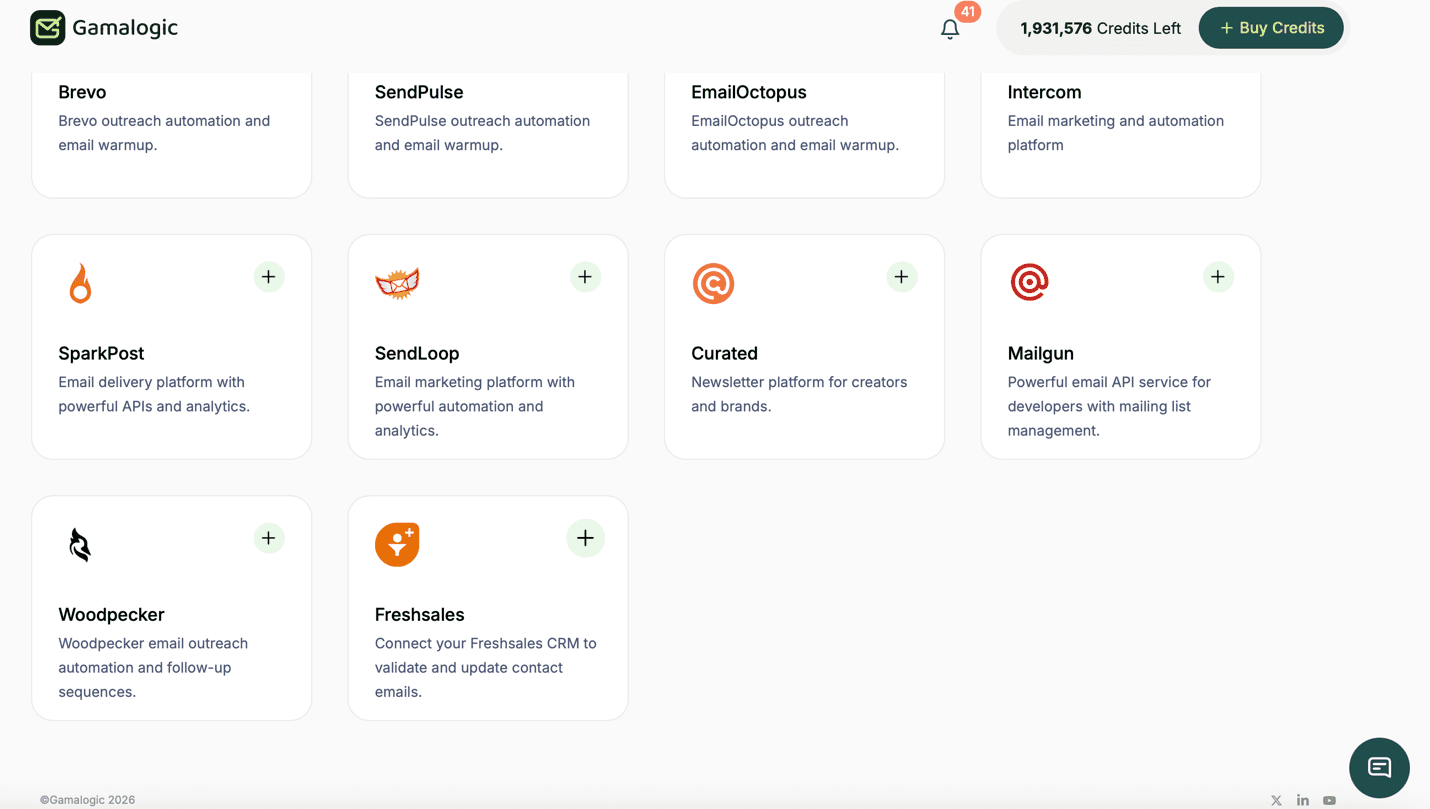
Navigate to the App Integrations section in your dashboard https://app.gamalogic.com/dashboard/integrate
Step 2
Select the Freshsales CRM application and on the + button
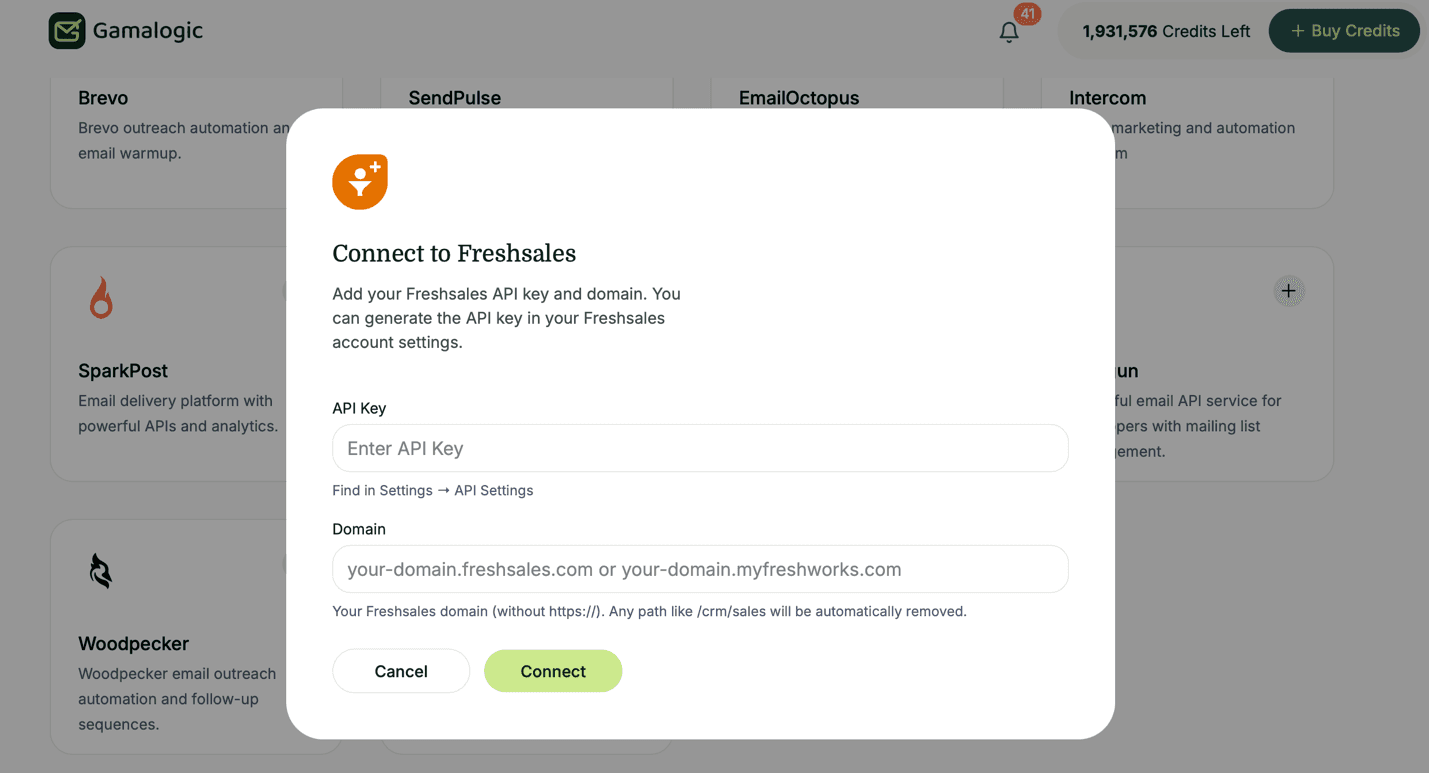
Step 3 - Authorize Access with Freshsales CRM contact list via API token
Copy your API key from Freshsales CRM under Apps & Integrations and , where you can copy your Freshsales CRM API key along with bundle alias and grant the necessary permissions for Gamalogic to access and import your contacts. Copy and paste your API key into Gamalogic. Gamalogic validates the api key with bundle alias and connects securely to your Freshsales CRM account
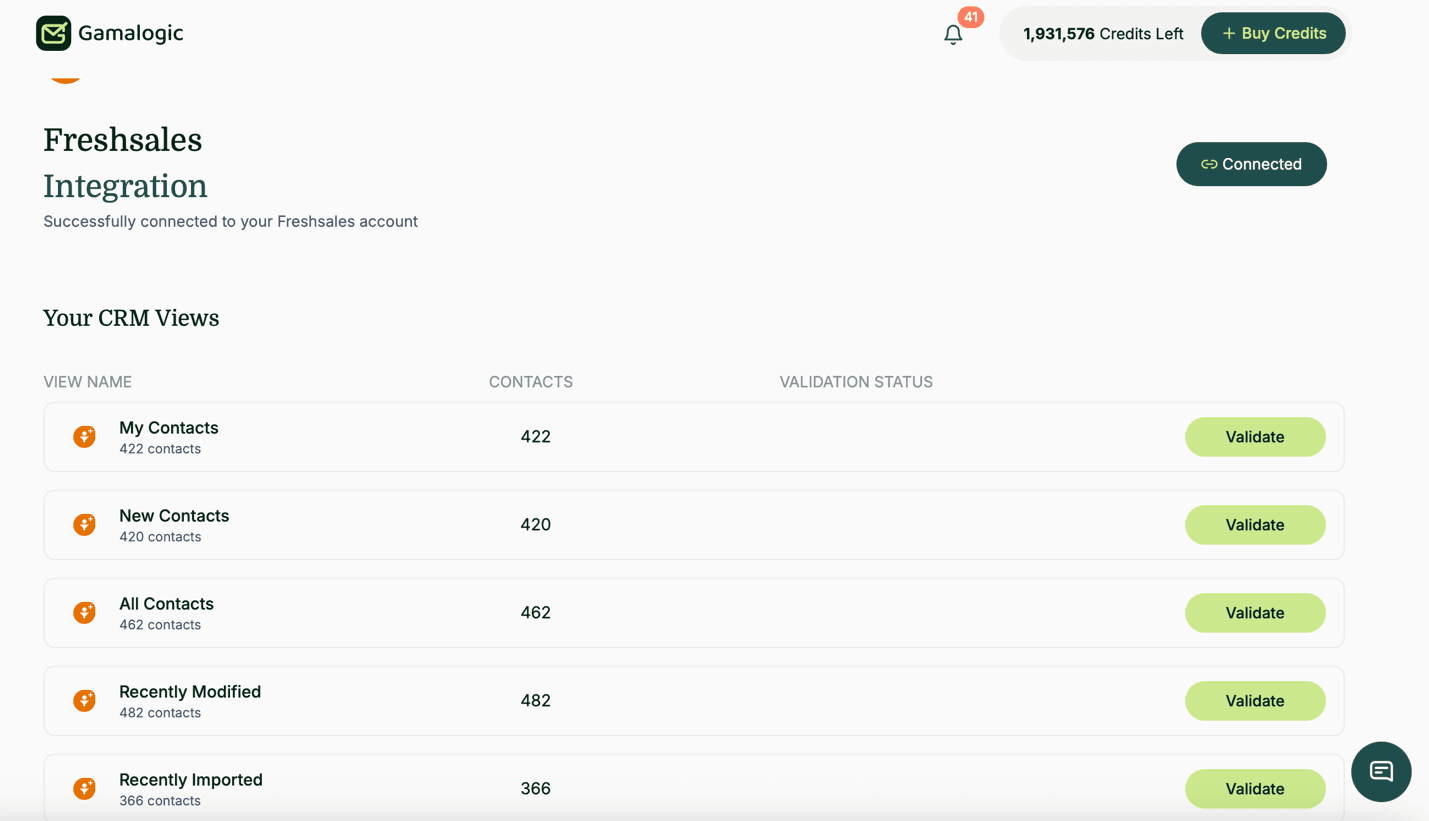
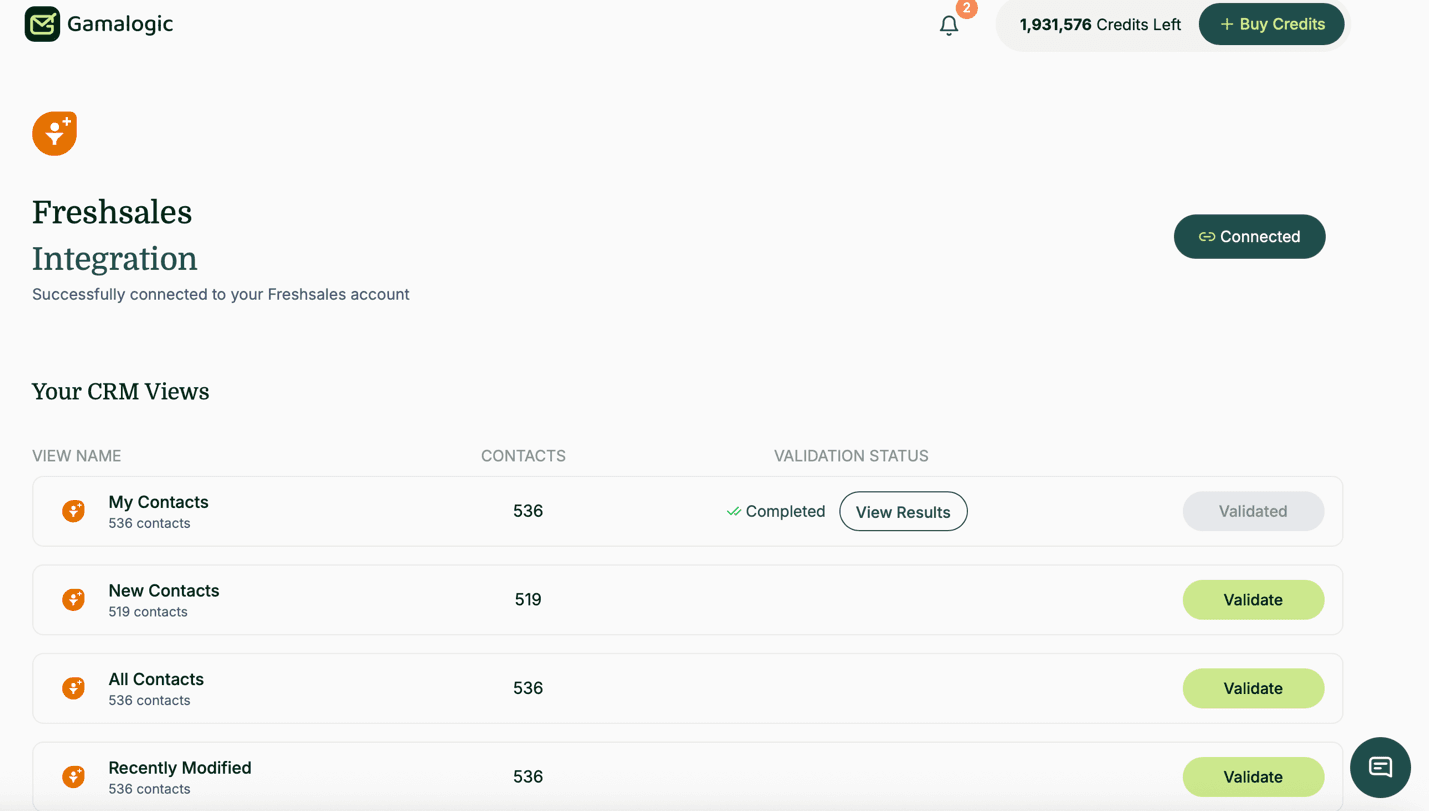
Step 4 - View Your Contacts
- After connection, you’ll see all your Freshsales CRM Contacts displayed with email address count
Step 5 - Start Email Validation
-
5.1 Choose Contacts to Validate
- Review your Contacts and select which one to validate
-
5.2 Check Credit Requirements
- The system automatically checks if you have enough credits
- Required credits = Number of contacts in the Contacts
- If insufficient credits, you’ll be prompted to purchase more
-
5.3 Initiate Validation
- Click the “Validate” button next to your chosen Contacts
- The button will change to “Initializing”
- Validation process begins
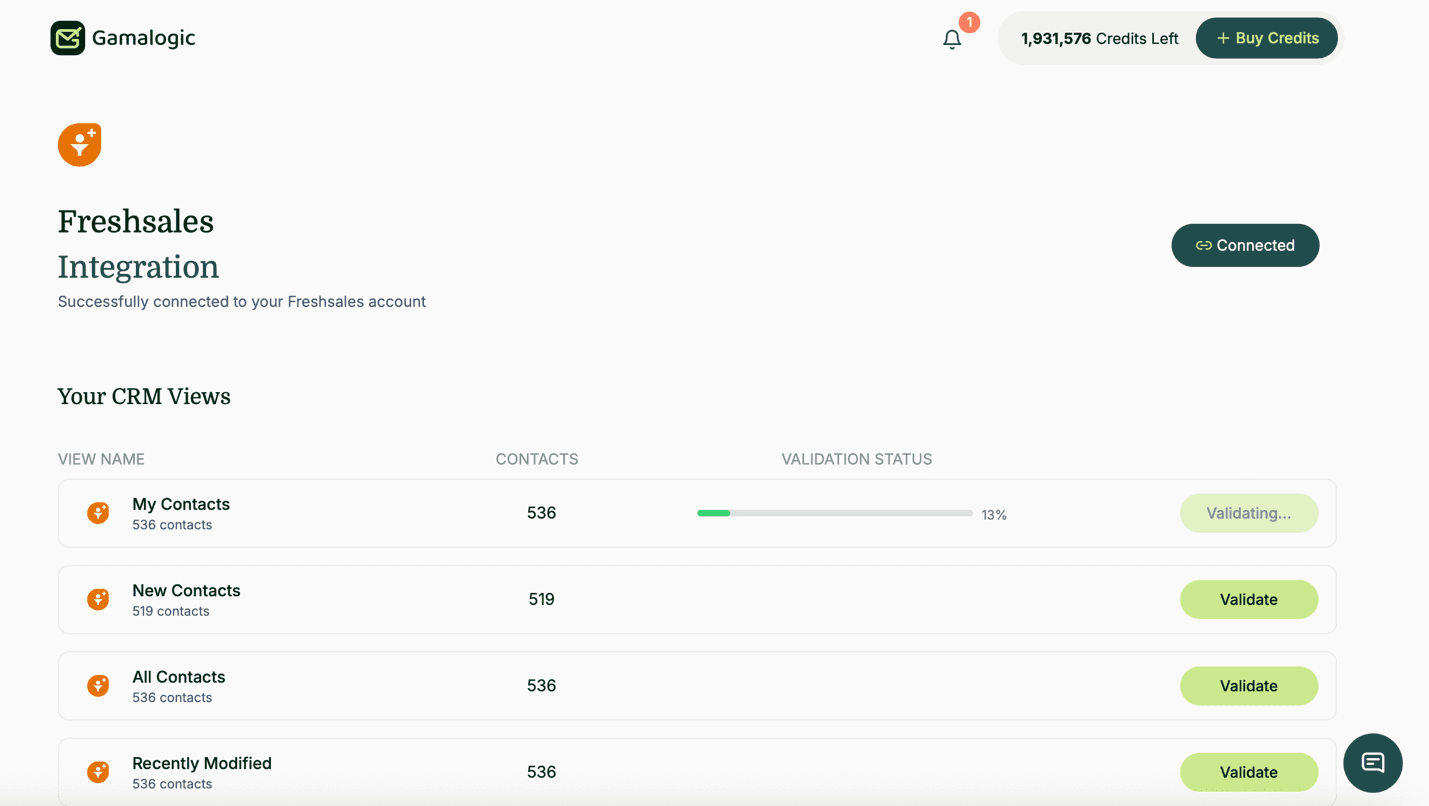
Step 6 - Monitor Validation Progress
Real-time Monitoring:
- Progress bar shows current status
Step 7 - Automatic Cleanup & Results
7.2 What Happens When Validation Completes in Freshsales CRM
After the email validation process is completed, Gamalogic updates the validation results directly within Freshsales CRM by automatically creating and updating two contact fields:
| Field Name | Description |
|---|---|
| Gamalogic Status | Stores the latest email validation result status |
| Gamalogic Validation Date | Stores the date and time of the latest validation |
The validation status helps users identify and filter valid email addresses that can be safely used for email marketing, outbound campaigns, and cold email activities.
The following actions occur automatically:
- Validation results are synchronized back to Freshsales CRM contacts
- Valid email addresses remain available for campaign usage
- Invalid and disposable email addresses can be filtered and excluded from campaigns
- Validation history becomes available for operational review and reporting
- Contact records are updated with the latest validation metadata
This workflow improves CRM data quality, supports deliverability management, and enables better audience segmentation for marketing and sales outreach activities.
Understanding the Results
When updating contacts, use these recommended fields:
| Status | Action |
|---|---|
| valid | Keep in the Contacts |
| not_valid | unsubscribed |
| is_disposable | unsubscribed |
| is_catchall | Keep in the Contacts |
| is_unknown | Keep in the Contacts |
Step 8 - Notification & Reporting
- 📧 Email confirmation when process completes
- 📊 Detailed report available in your History section
- 🔍 Download results for complete audit trail
Step 9 - Review and Next Steps
- Check Your Results
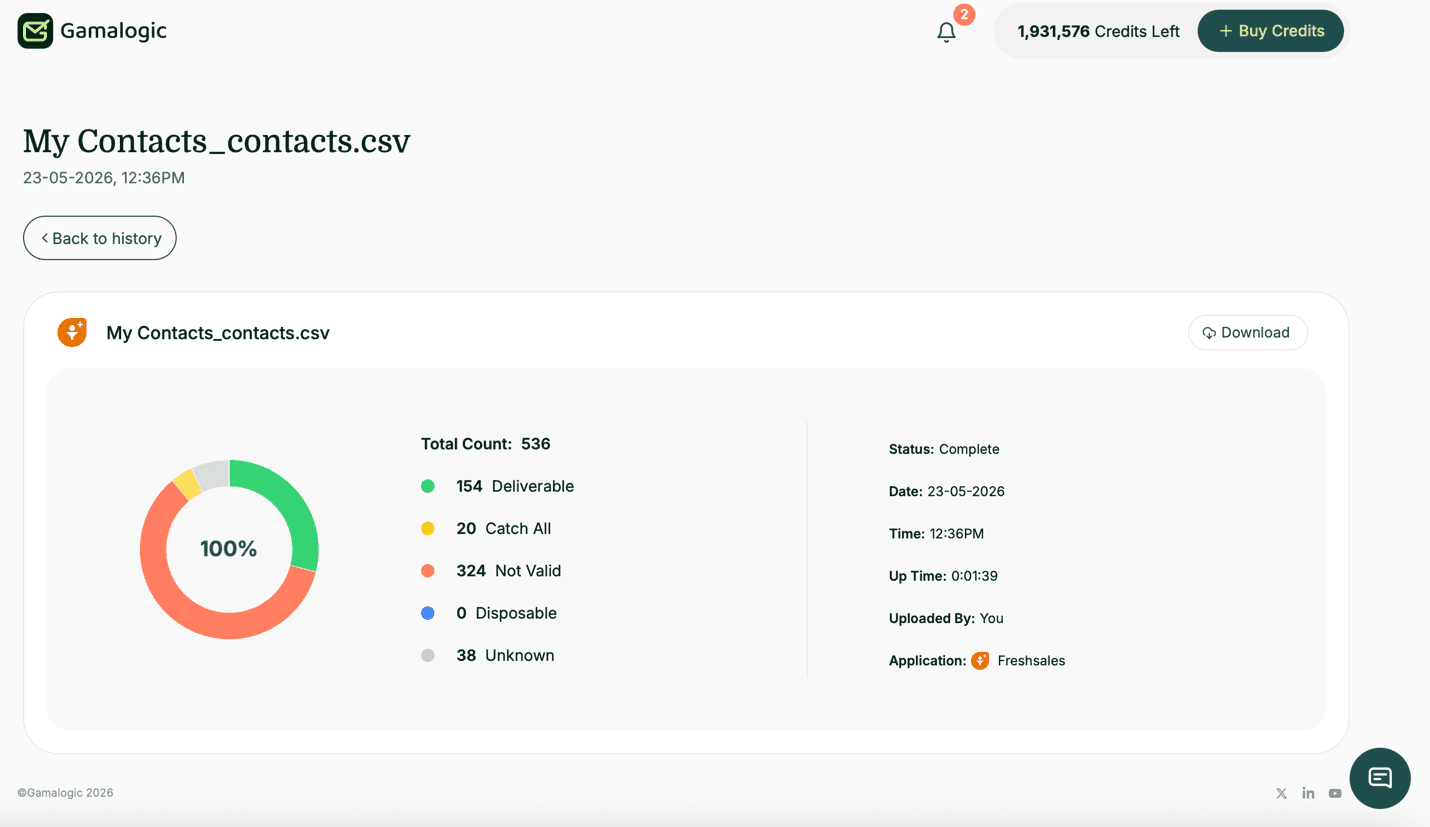
- Download CSV files with complete email-by-email results
- Review the unsubscribed Contacts in your Freshsales CRM account
4. Contact Synchronization
4.1 Contact Import and Synchronization
After successful authentication:
- All available contacts from Freshsales CRM are synchronized to Gamalogic
- Contact counts are displayed during synchronization
- Imported contacts are available for email validation processing
- Gamalogic retrieves contacts securely using the Freshsales CRM API connection
5. Reporting & Monitoring
Track:
- Validation success rate
- Percentage of invalid emails
- Disposable email patterns
- Deliverability improvements over time
Use Freshsales CRM dashboards and Gamalogic history page https://app.gamalogic.com/dashboard/history to track the details
6. Contact
For support with integration:
- Gamalogic Support: support@gamalogic.com
- Freshsales CRM Help Center